> ## Documentation Index
> Fetch the complete documentation index at: https://developers.chatwoot.com/llms.txt
> Use this file to discover all available pages before exploring further.
# Set up Instagram Business Login for Chatwoot
> Configure the Chatwoot Instagram integration for a self-hosted installation using Meta's recommended Instagram Business Login flow.
Please ensure you have installed version v4.1 or above. If not, please refer to this [guide](./instagram-channel-setup) for the Facebook Login method.
Use this guide to connect Instagram professional accounts to a self-hosted Chatwoot installation using Instagram Business Login. This is the recommended authentication method for Chatwoot Instagram inboxes from v4.1 onwards.
## Prerequisites
1. A valid Facebook account.
2. A valid Instagram professional account.
## Register a Facebook app
To use the Chatwoot Instagram channel, create a Facebook app in the developer portal. You can find more details about creating Facebook apps [here](./facebook-channel-setup).
1. Click on the "Create App" button
 2. Select the option "Other".
 3. For the app type, choose "Business"
 4. Add app name and connect business account
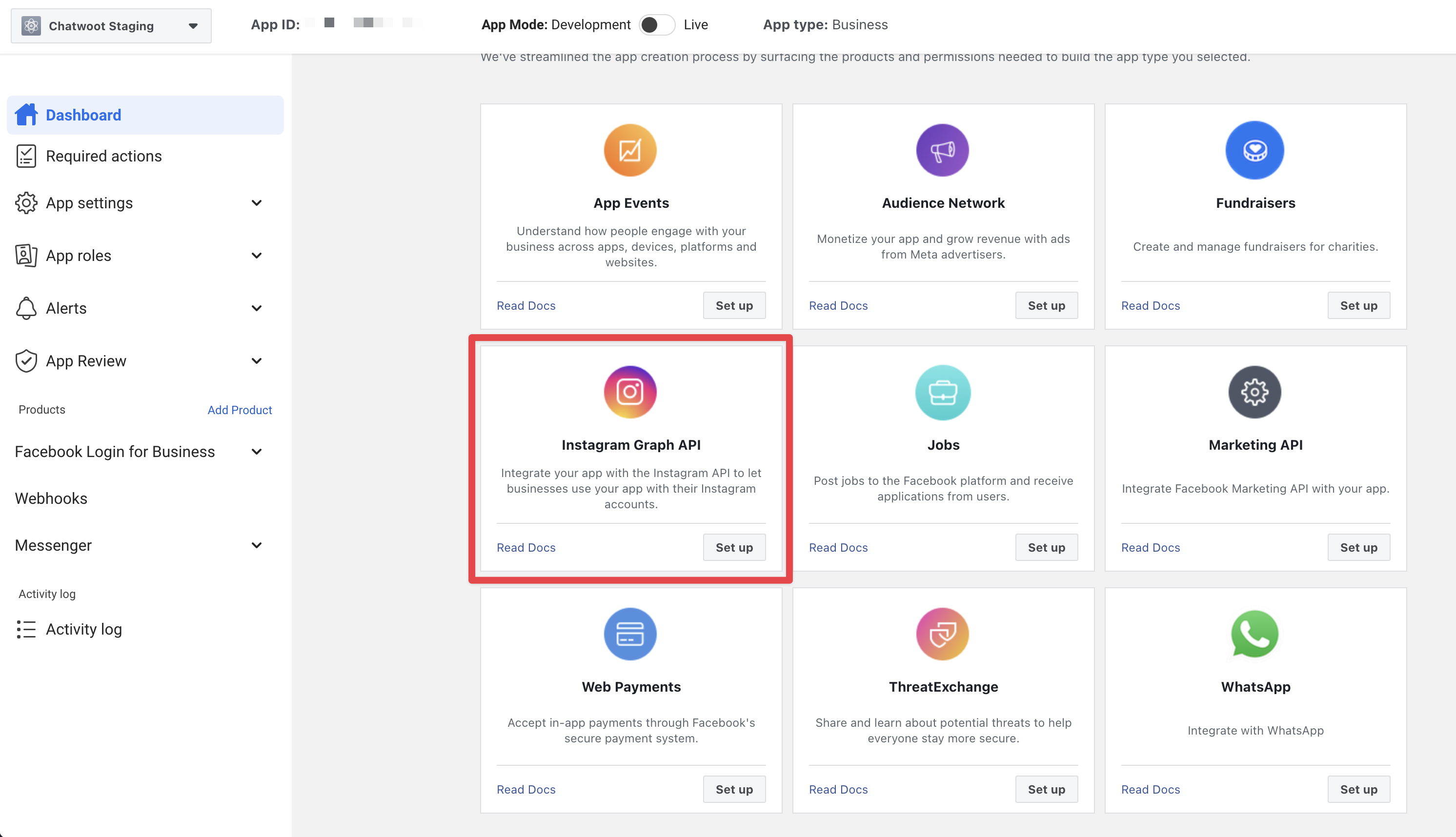
 5. Add Instagram product from the Home page.
 ## Configure Instagram settings for Chatwoot
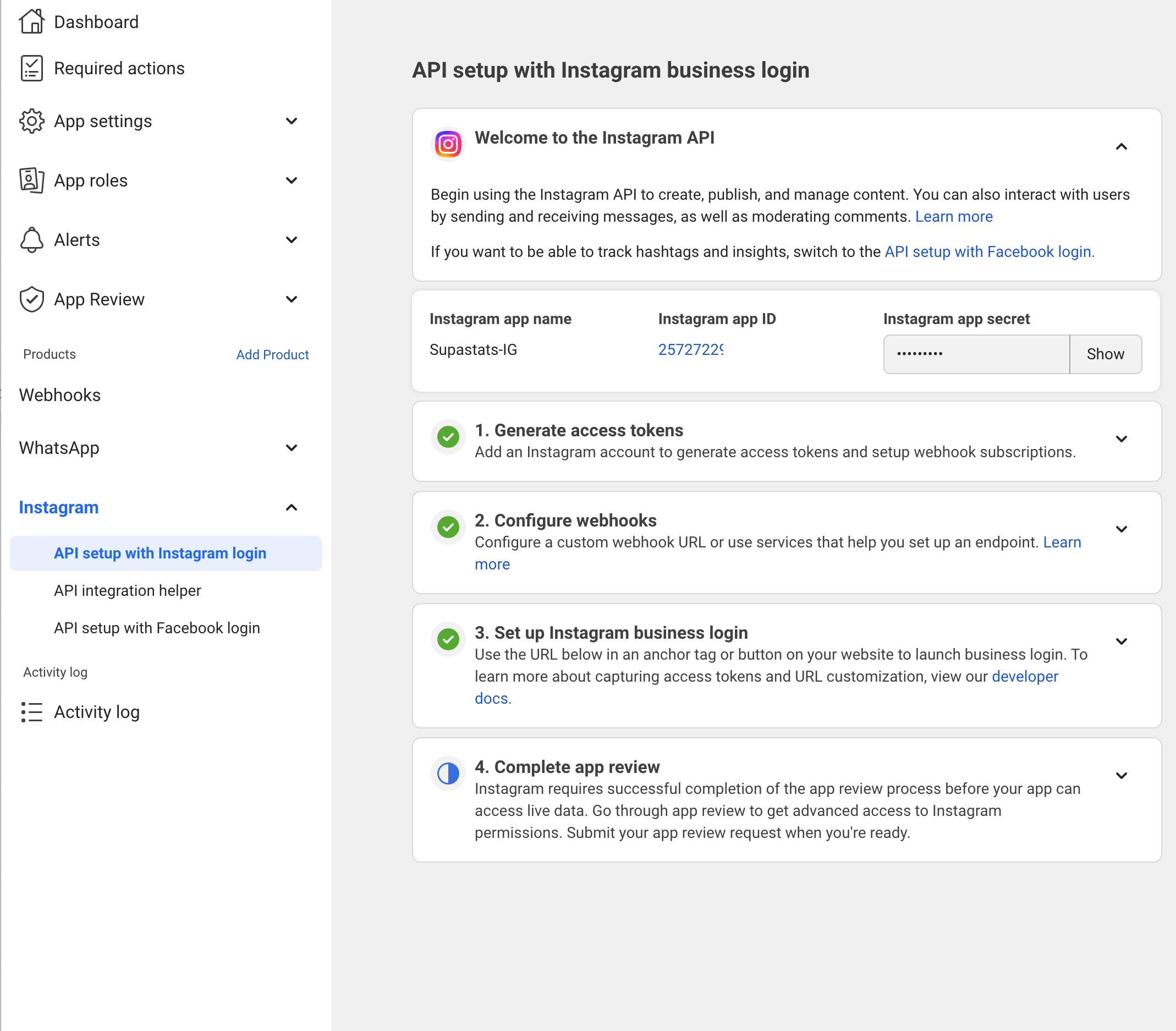
1. Copy Instagram app ID and Instagram app secret
## Configure Instagram settings for Chatwoot
1. Copy Instagram app ID and Instagram app secret
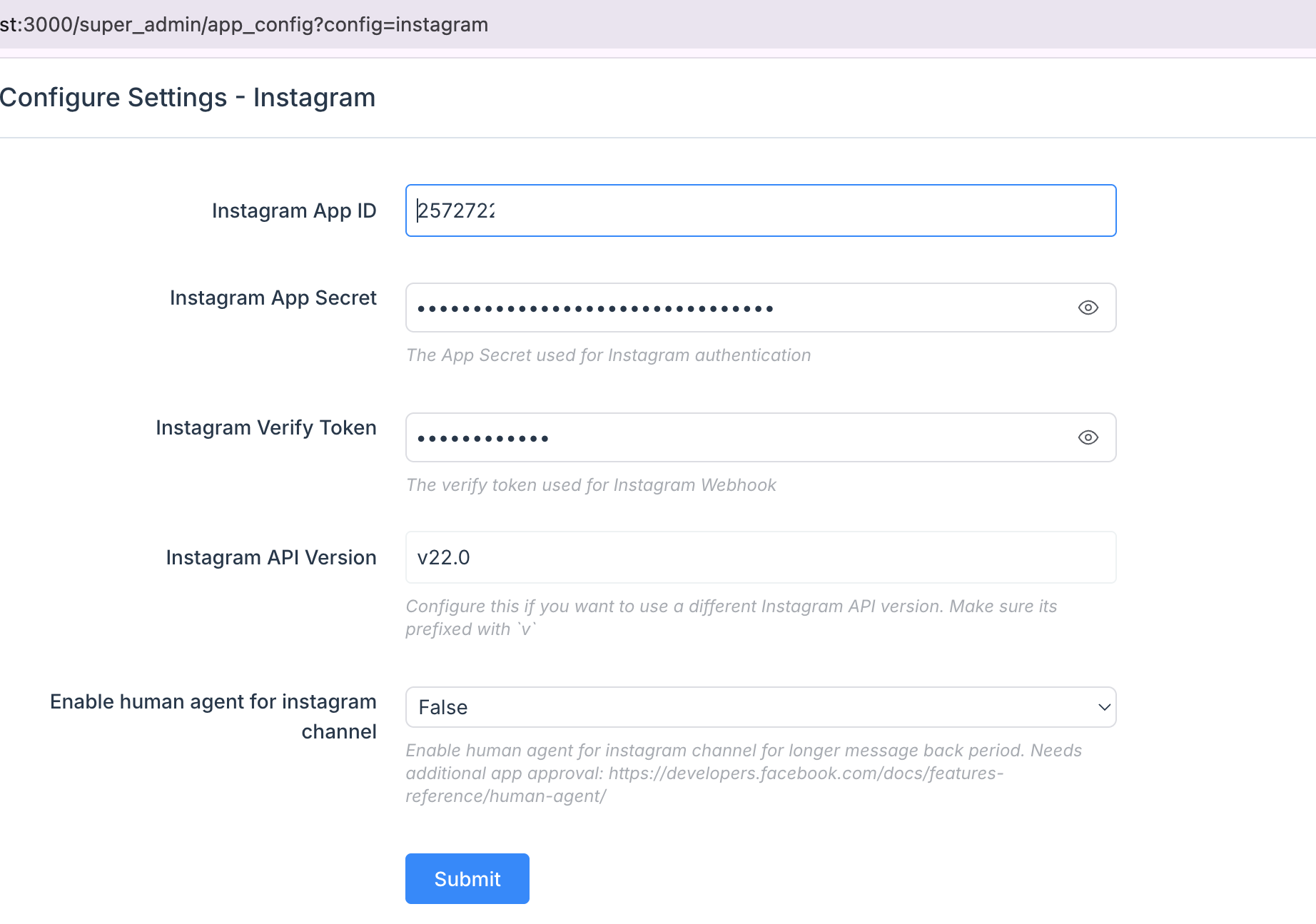
 2. Add the Instagram app ID and Instagram app secret to your app config via `{Chatwoot installation url}/super_admin/app_config?config=instagram`
 3. Configure Webhooks
Set the callback URL to `{your_chatwoot_url}/webhooks/instagram`. The verify token should match your `INSTAGRAM_VERIFY_TOKEN`, which can be configured through `app_config`
3. Configure Webhooks
Set the callback URL to `{your_chatwoot_url}/webhooks/instagram`. The verify token should match your `INSTAGRAM_VERIFY_TOKEN`, which can be configured through `app_config`
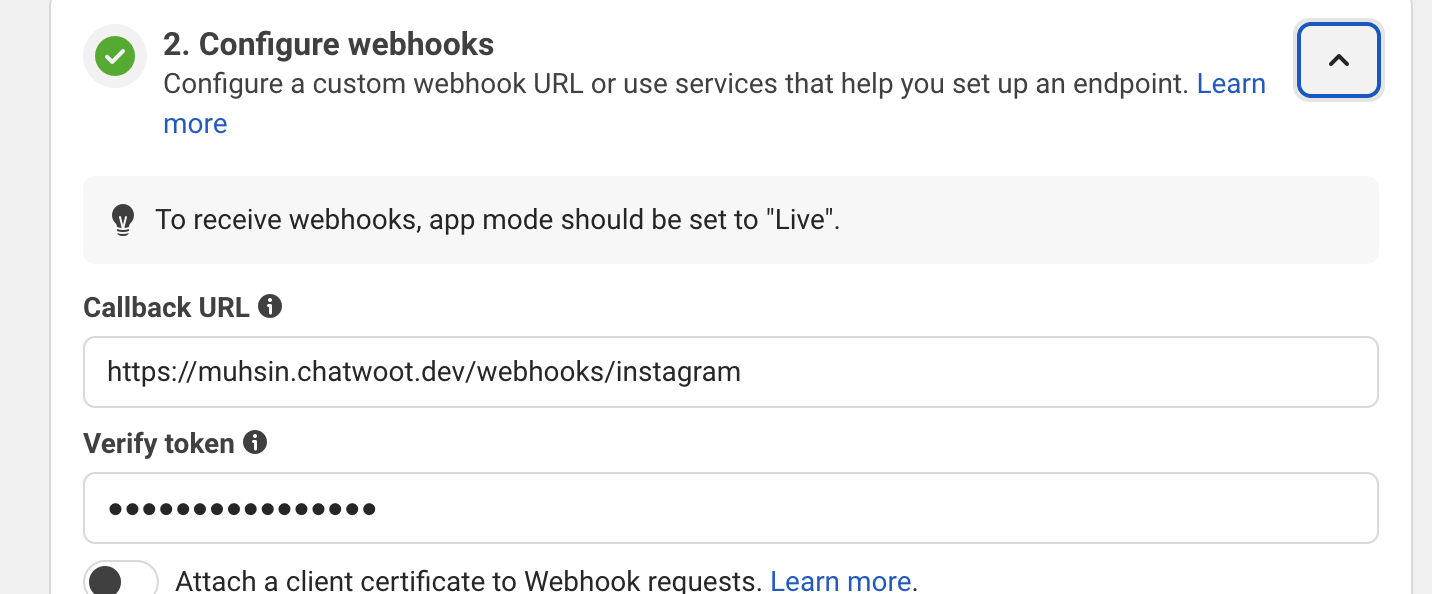 Subscribe to `messages`, `messaging_seen`, and `message_reactions` events.
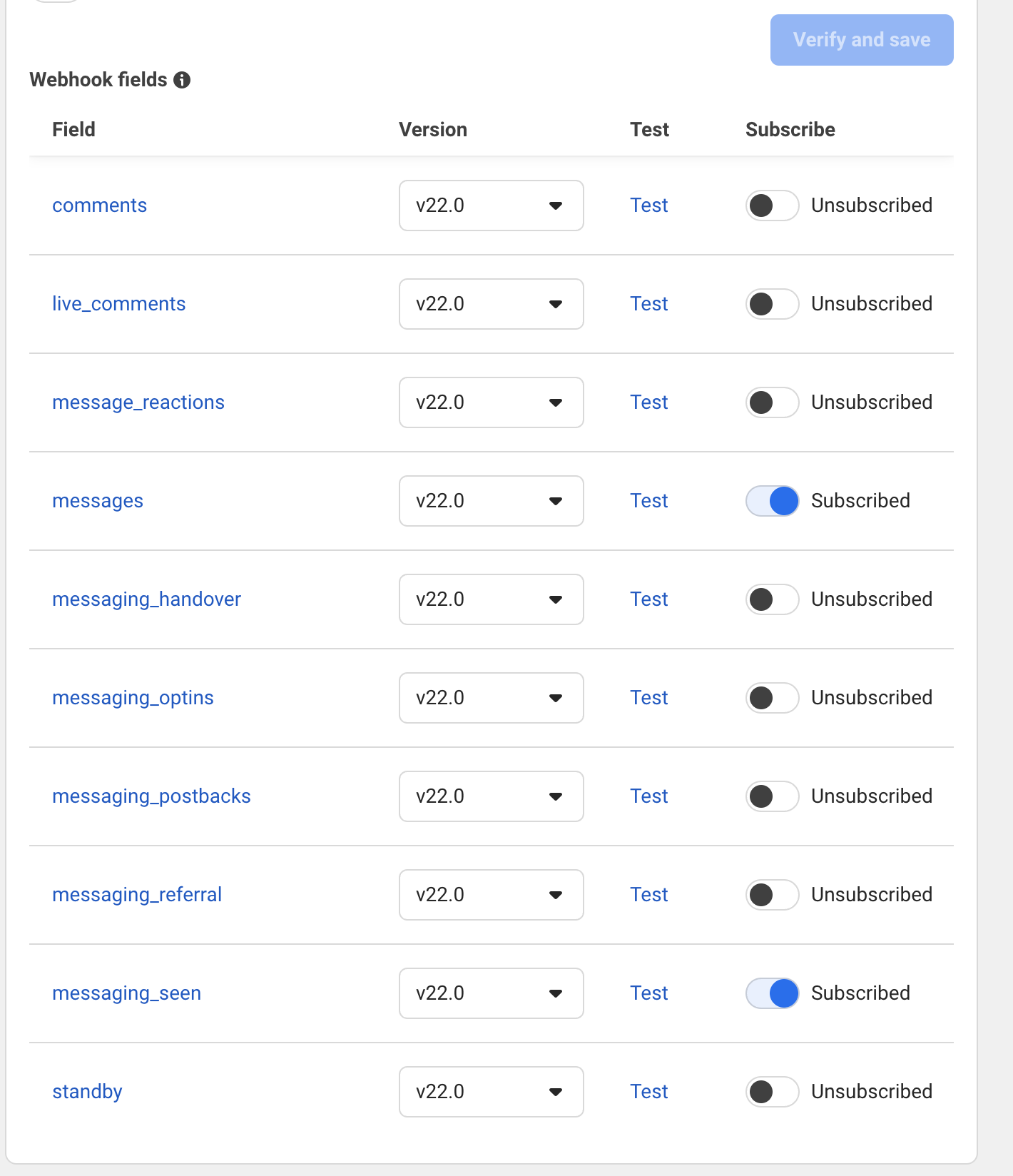 To receive web hooks, app mode should be set to "Live".
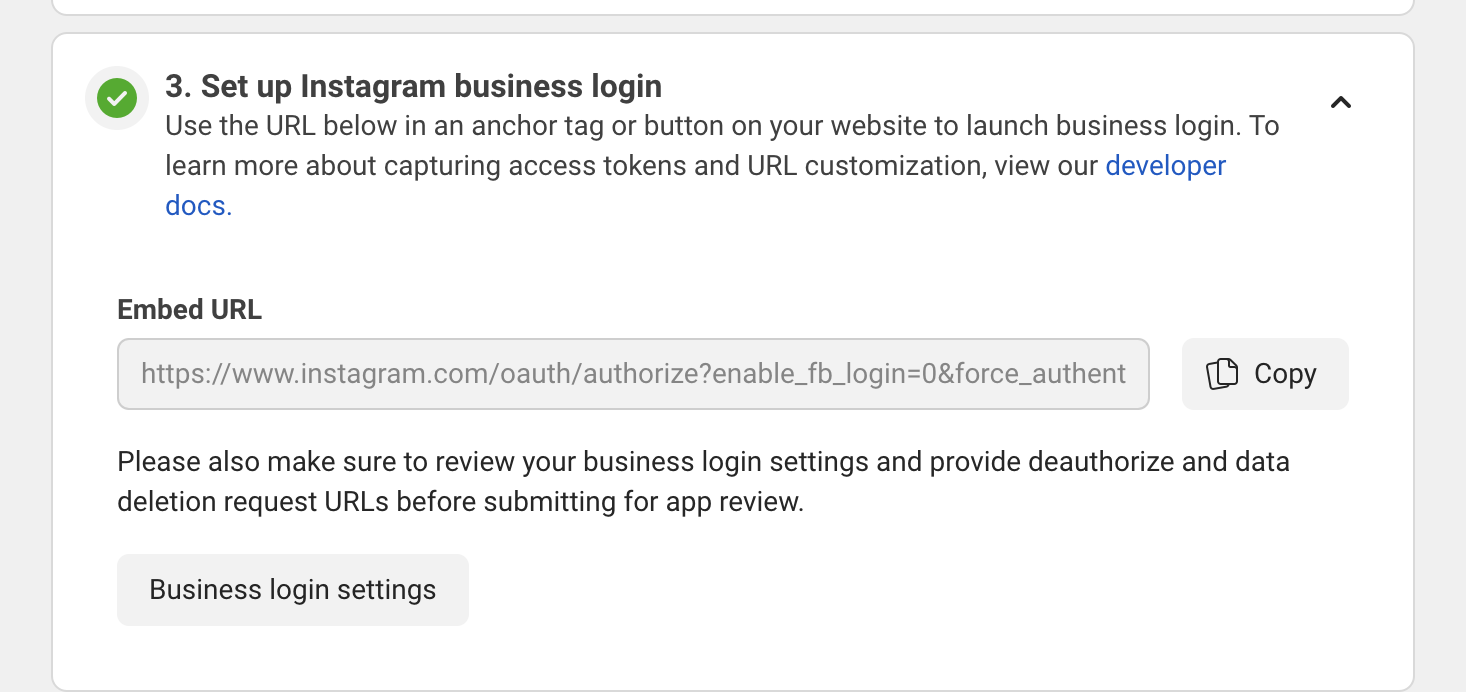
4. Set up Instagram business login
Set Redirect URL as `{your_chatwoot_url}/instagram/callback`
To receive web hooks, app mode should be set to "Live".
4. Set up Instagram business login
Set Redirect URL as `{your_chatwoot_url}/instagram/callback`
 5. Create a new Instagram tester account
## Create an Instagram inbox in Chatwoot
Head over to Chatwoot and create an Instagram inbox. Please refer to this [guide](https://chatwoot.help/hc/user-guide/articles/1744361165-how-to-setup-an-instagram-channel-via-instagram-login) for more details on creating an Instagram inbox in Chatwoot.
## Test the Instagram integration before going live
1. Add Instagram Testers by clicking "Add People" button.
5. Create a new Instagram tester account
## Create an Instagram inbox in Chatwoot
Head over to Chatwoot and create an Instagram inbox. Please refer to this [guide](https://chatwoot.help/hc/user-guide/articles/1744361165-how-to-setup-an-instagram-channel-via-instagram-login) for more details on creating an Instagram inbox in Chatwoot.
## Test the Instagram integration before going live
1. Add Instagram Testers by clicking "Add People" button.
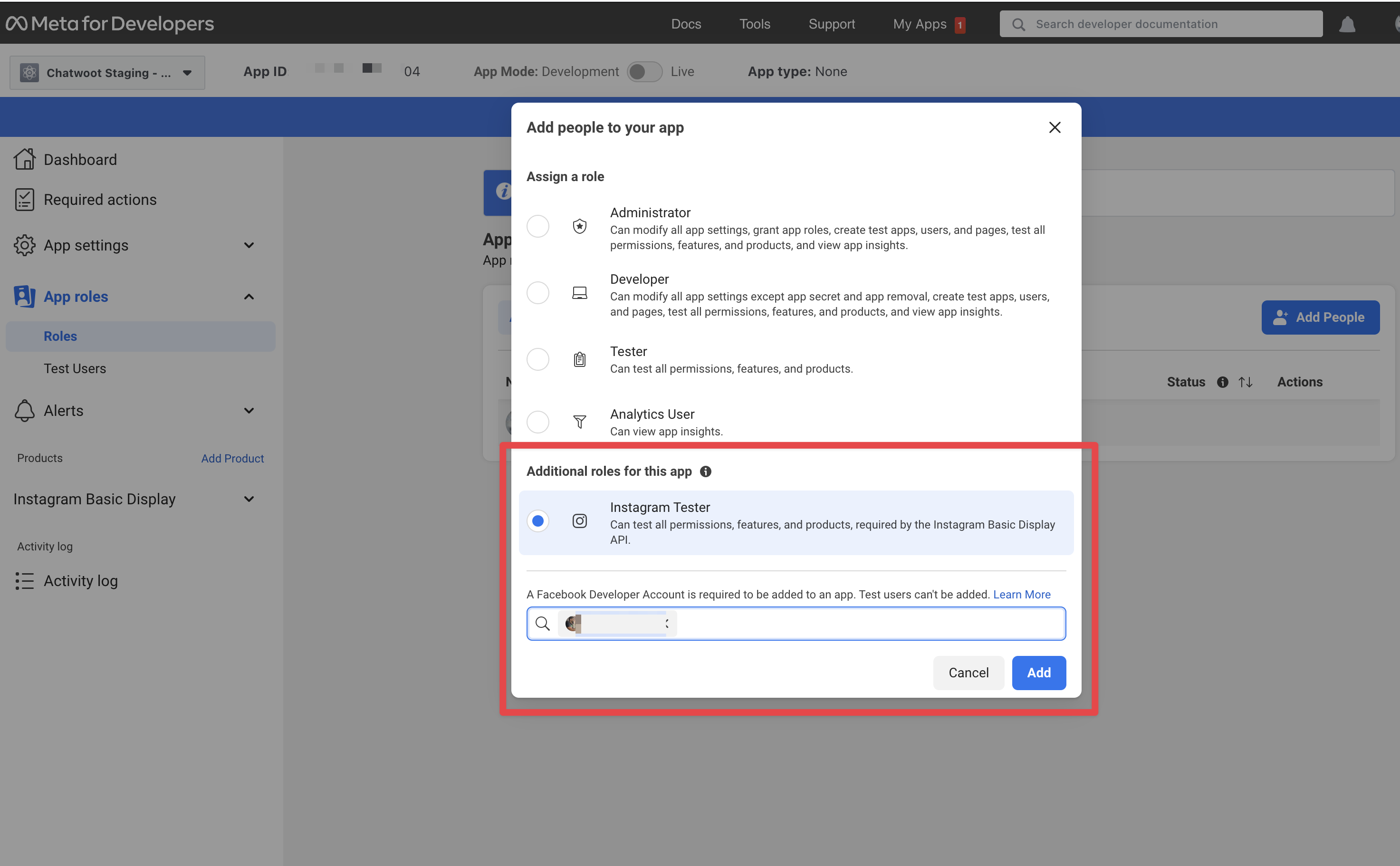
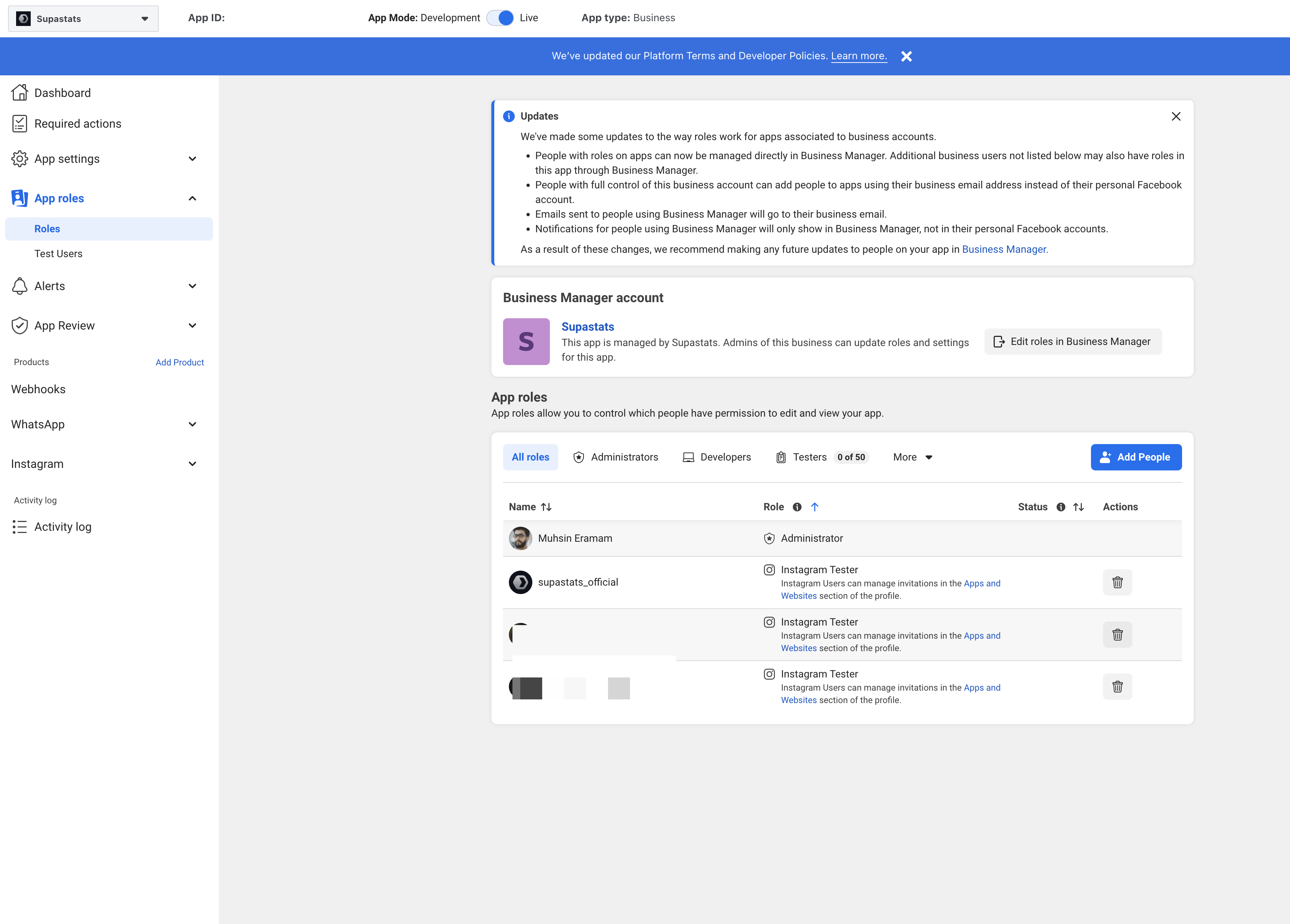 2. Make sure that you have selected the role Instagram Tester while creating a new tester.
 ## Going into production.
Before you can start using your Facebook app in production, you will have to get it verified by Facebook. Refer to the [docs](https://developers.facebook.com/docs/messenger-platform/instagram/app-review) on getting your app verified.
## Troubleshooting & Common Errors
### Insufficient Developer Role Error
Ensure the Instagram user is added as a developer: `Meta Dashboard → App Roles → Roles → Add People → Enter Instagram ID`
### API Access Deactivated
Ensure the **Privacy Policy URL** is valid and correctly set.
### Invalid request: Request parameters are invalid: Invalid redirect\_uri
Please configure the Frontend URL. The Frontend URL does not match the authorization URL.
### Instagram Channel creation Error: Failed to exchange token
Please make sure that the tester account has been added to the Facebook app settings.
### 400: Session Invalid when connecting the Instagram channel
This might be an issue from Facebook's side. Please try again after some time.
## Going into production.
Before you can start using your Facebook app in production, you will have to get it verified by Facebook. Refer to the [docs](https://developers.facebook.com/docs/messenger-platform/instagram/app-review) on getting your app verified.
## Troubleshooting & Common Errors
### Insufficient Developer Role Error
Ensure the Instagram user is added as a developer: `Meta Dashboard → App Roles → Roles → Add People → Enter Instagram ID`
### API Access Deactivated
Ensure the **Privacy Policy URL** is valid and correctly set.
### Invalid request: Request parameters are invalid: Invalid redirect\_uri
Please configure the Frontend URL. The Frontend URL does not match the authorization URL.
### Instagram Channel creation Error: Failed to exchange token
Please make sure that the tester account has been added to the Facebook app settings.
### 400: Session Invalid when connecting the Instagram channel
This might be an issue from Facebook's side. Please try again after some time.